Before you start
What this post does: Walks the real E-commerce Studio flow from the app UI: enter a store URL, verify and import, open the live storefront viewer, then enhance a product image with optional prompt guidance.
Who it is for: ecommerce teams that need faster visual iteration for listings, ads, and seasonal campaigns without scheduling a new photoshoot for every concept.
Important: Enhanced visuals are creative outputs that still require SKU-level review. Keep product facts accurate (shape, colorway, included parts, packaging details) before publishing.
Account: You must be signed in before Enhance my store runs. Returning users also see Recent stores on the landing page; View All opens the Saved stores library.
Start here:
Stage 1 - Enter your store URL
Enter your store domain and run Enhance my store.
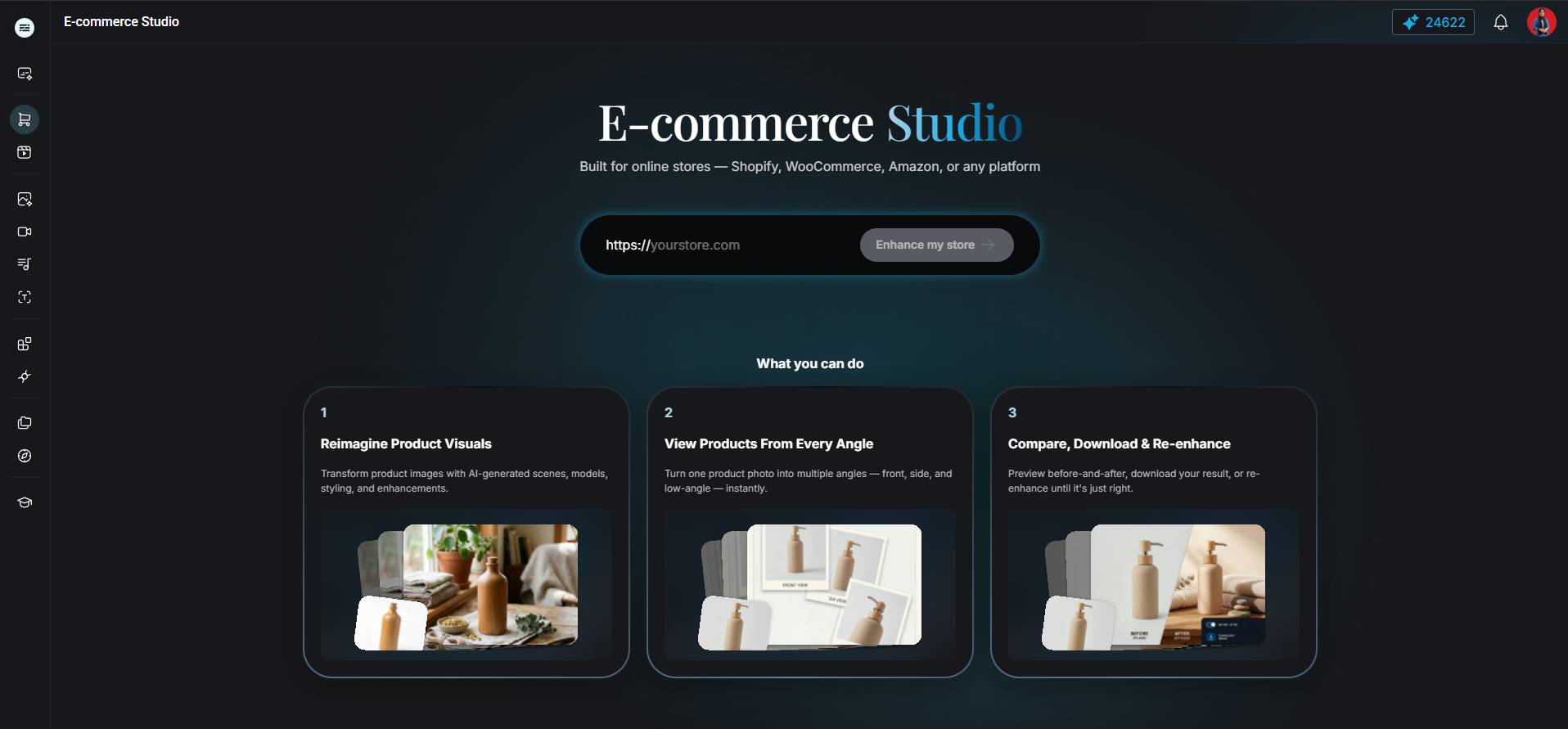
E-commerce Studio landing with URL input and What you can do cards (shown when you have no saved stores yet)
What it does: The E-commerce Studio landing includes a URL field (with a fixed https:// prefix; you type the host only, e.g. yourstore.com) and an Enhance my store action.
The app validates and prepares website data before opening the viewer, so teams are not editing in a disconnected asset folder.
| UI element | Purpose |
|---|---|
| Store URL input | Type yourstore.com; the app prepends https:// on submit |
| Enhance my store | Starts verification and import (requires sign-in) |
| Reimagine Product Visuals | What you can do card — AI scenes, models, styling, and enhancements |
| View Products From Every Angle | What you can do card — front, side, and low-angle outputs from one photo |
| Compare, Download & Re-enhance | What you can do card — before/after preview, download, and iterate |
Stage 2 - Verification and import
The loader confirms website access before opening the workspace.
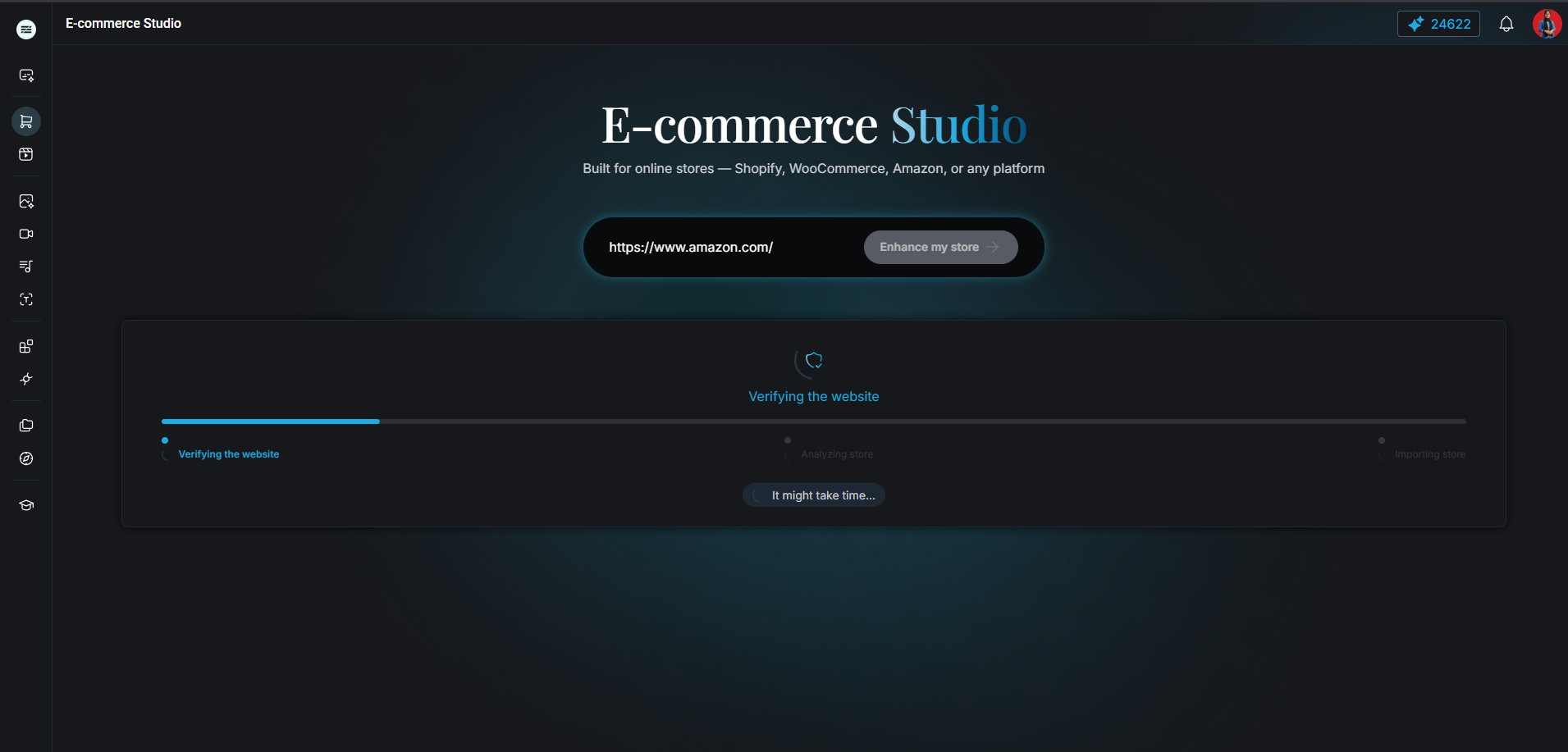
Import progress state while E-commerce Studio verifies and prepares website content
What it does: After clicking Enhance my store, E-commerce Studio runs a staged loader: Verifying the website, then Analyzing store, then Importing store (footer: It might take time...).
Invalid URL format shows an inline message under the field (This is an invalid URL format.) and does not start the loader. Unsupported or failed imports open an Unsupported Website modal with Try supported URL — the app does not produce partial or random edits.
Stage 3 - Open the live website viewer
Pick the product in context before you enhance.
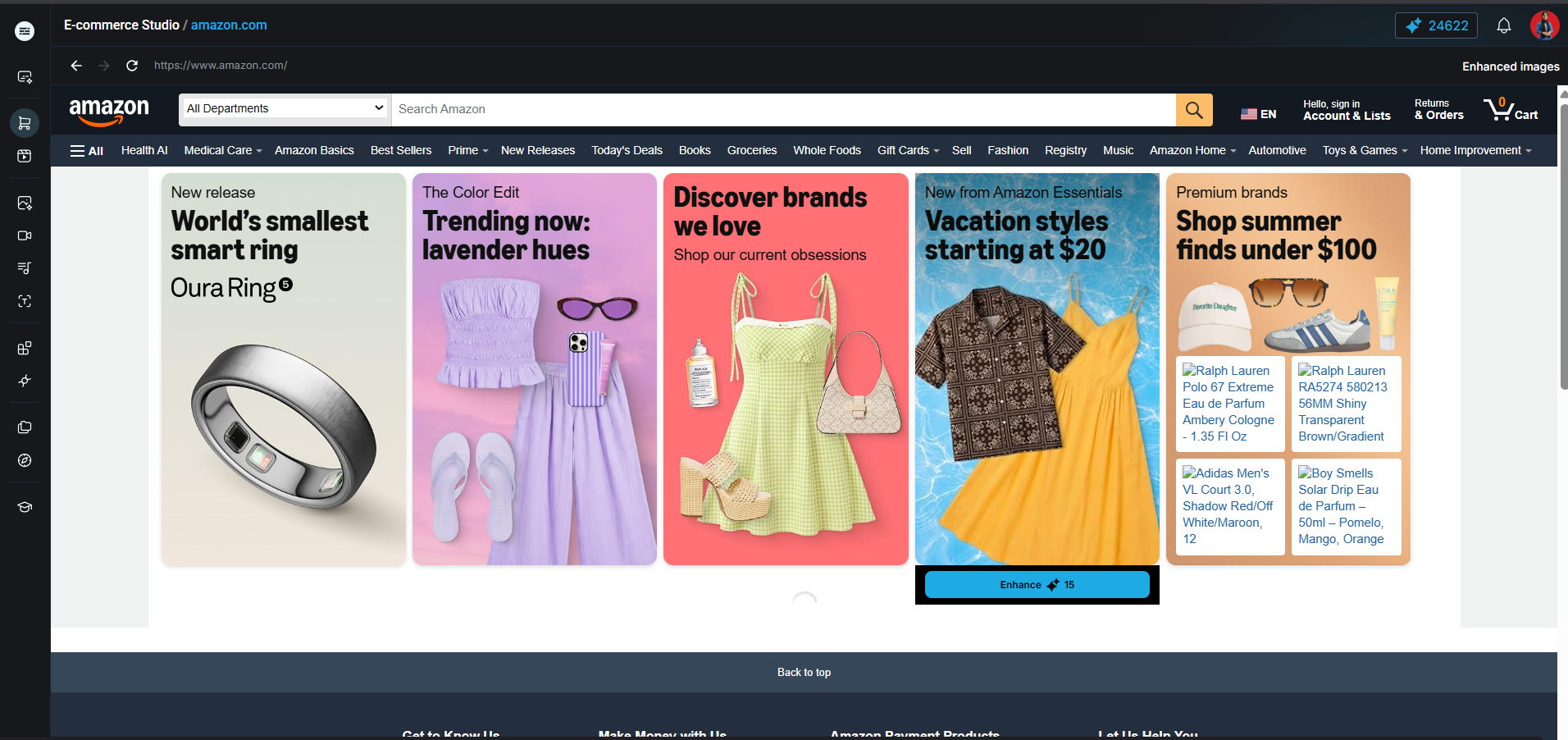
Imported storefront in E-commerce Studio with Enhance on a product image
What it does: The storefront opens inside the studio viewer (iframe) so your team can pick product images in real page context. On desktop, hover a qualifying image to reveal Enhance; on mobile, enhance actions stay visible on eligible images.
Choose which image to enhance first (hero tile, category tile, or PDP image). After a successful run, use the Before / After toggle on that tile to compare in context.
| Workflow step | What you do | Primary risk | Quality check |
|---|---|---|---|
| URL import | Enter store URL and run Enhance my store | Wrong domain or unsupported source | Confirm loader completes and site opens |
| Product selection | Choose the exact product tile or frame | Editing the wrong SKU image | Match with product title and placement |
| Enhance prompt | Describe scene/material/light intent | Over-stylization or invented attributes | Preserve SKU silhouette and claims |
| Enhancement review | Compare original vs enhanced output; Preview on my store | Subtle product drift | Before/After toggle and side-by-side check before download |
Stage 4 - Enhance an image with controlled direction
Optional prompt guidance, then Enhance.
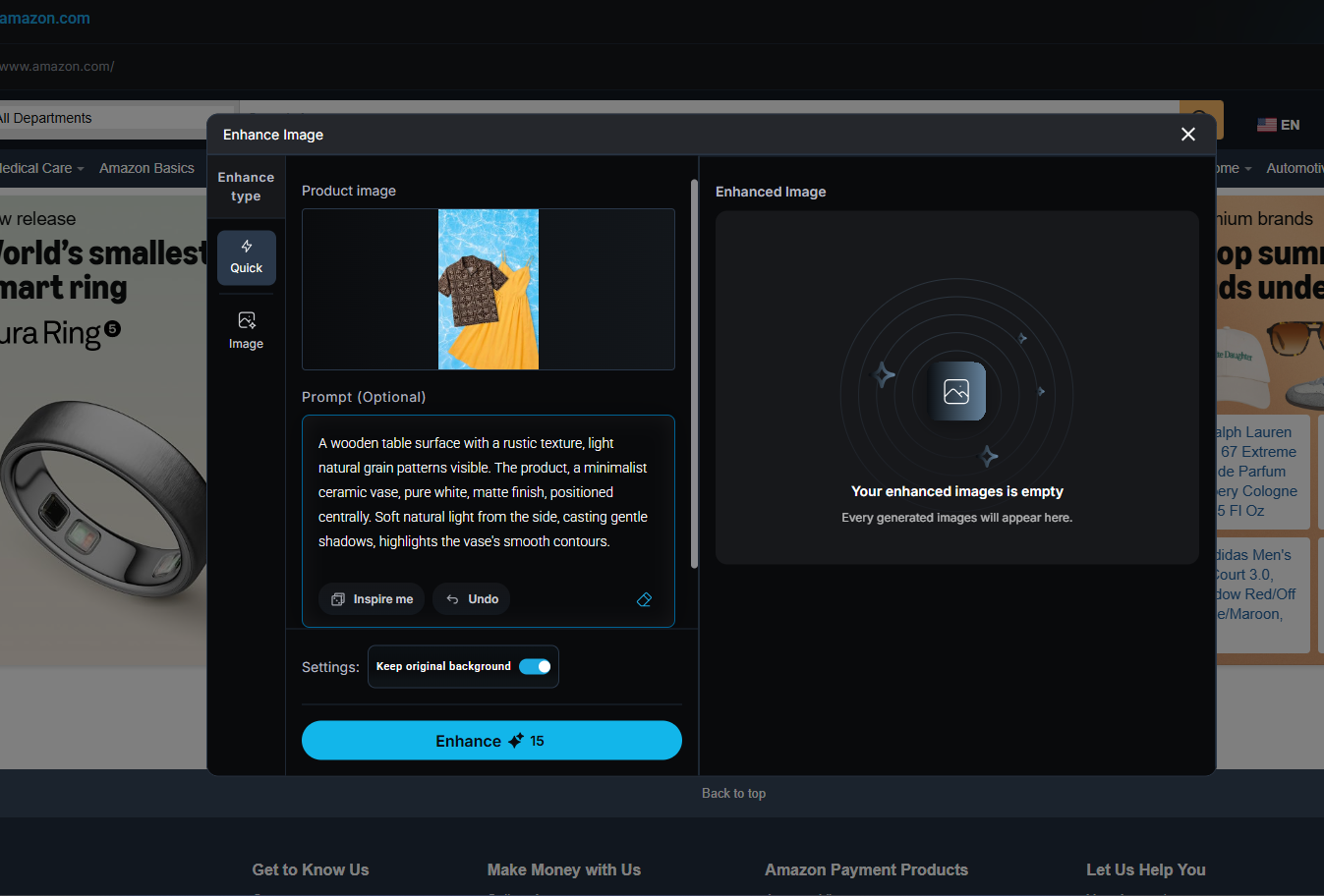
Enhance Image modal with source preview, optional prompt, Inspire me, and Enhance action
What it does: The Enhance Image modal opens on the Quick tab with the source image, Prompt (Optional), Inspire me, and an Enhance action (credits shown on the button). The Image tab adds Show more angles (multi-angle outputs with angle selection) and Show on a model (virtual try-on with Try On Product).
After a successful Quick or angles run, use Preview on my store to see the result in storefront context. Download is available from the enhanced output panel or overlay tooltip Download enhanced image.
Practical prompt structure (Quick tab)
- Keep product identity fixed first (shape, finish, visible details).
- Specify environment and lighting second.
- Add style constraints (minimal, clean, ecommerce-safe).
- State what to avoid (text overlays, extra products, altered packaging).
Short, explicit prompts usually outperform long decorative prompts for commerce use.
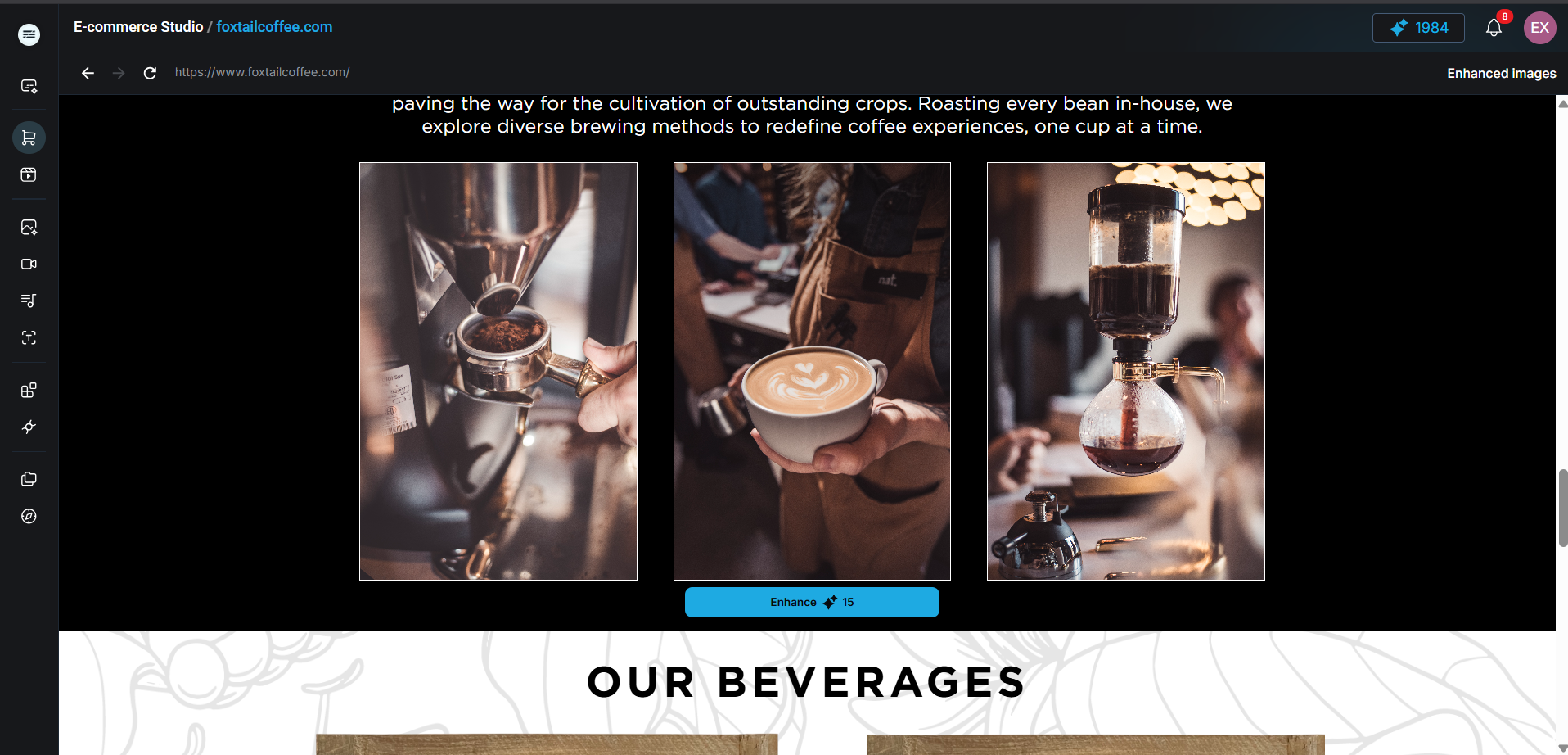
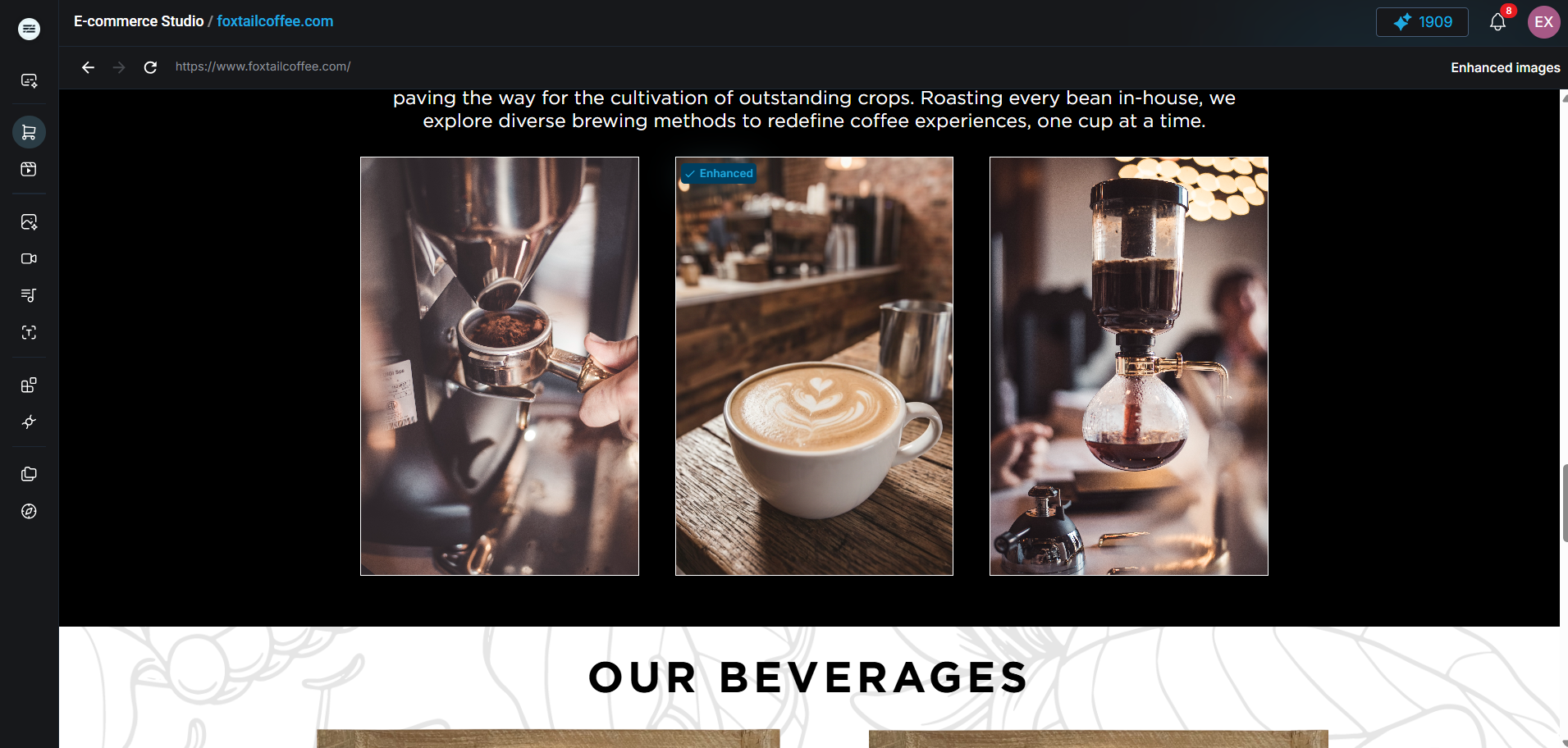
Slider walkthrough - selection to enhancement
Use the slider to explain transition, not just output.
The compare slider above is ideal for documentation and training: left side shows the product in storefront context, right side shows the exact enhancement workspace and controls used to produce a variation.
This reduces handoff ambiguity between creative, growth, and merchandising teams because the process is visible, not implied.
Enhance this product image for ecommerce while preserving the exact product identity. Keep the same silhouette, material finish, and visible details. Place it in a clean premium setting with soft natural light, realistic shadows, and uncluttered background. Do not alter shape, add text, duplicate products, or invent accessories.
Stage 5 - Review before publish
A good-looking image can still be commercially wrong.
Run a short QA checklist before downloading or reusing any enhanced image:
- Identity: SKU shape, closure, label, and material details remain accurate.
- Color truth: no drift that can mislead buyers.
- Context claims: scene does not imply unsupported product performance.
- Channel fit: composition works for PDP, ad, and social placements.
- Compliance: disclosures and brand rules are still met.
- In-context check: use Preview on my store and the Before / After toggle before you ship.
Keep rejected variants. Failure examples improve future prompt discipline and reduce repeated mistakes.
The value is not only faster visuals. It is a repeatable workflow from storefront context to controlled enhancement with reviewable decisions.