Before you start
What this post does: Walks the real Expertex Image Studio Virtual Try-On path. Upload a Model image and an Outfit image, hit Generate, then review the result like merchandising QA.
Important: Virtual Try-On has no prompt text field. Quality comes from reference images and Model Settings, not from typing a creative brief into the app.
Virtual try-on helps shoppers imagine styling and helps teams explore campaign directions. It cannot reliably prove sizing, drape, comfort, opacity, support, or movement for every body. Keep size charts, measurements, material details, fit notes, and return guidance beside the visual.
Before you generate anything: obtain rights and consent for every outfit photo and every person likeness. Never upload a person's image without permission.
Start here:
- Image Studio → Virtual Try-On (primary path)
- Expertex Agent (optional chat front door)
Stage 1 — 60-second app map
If you only remember one screen, remember this.
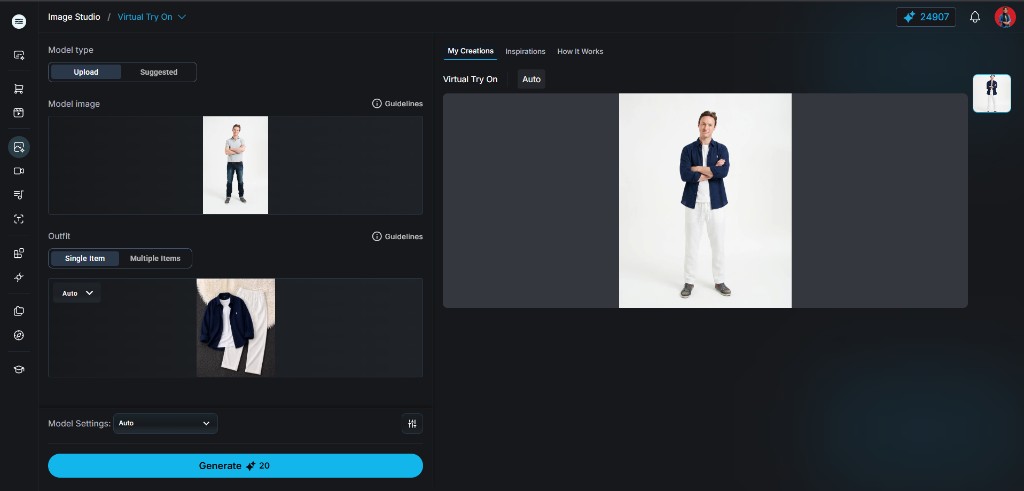
Real Virtual Try-On workspace — Model image + Single Item outfit on the left, generated result in My Creations on the right.
What it does: Matches the live Virtual Try-On UI so you never look for a prompt box that is not there.
| UI control | What you do |
|---|---|
| Model type | Upload your own model, or pick Suggested |
| Model image | Person / model reference (full body preferred) |
| Outfit | Single Item or Multiple Items |
| Outfit image(s) | Garment / product reference(s) |
| Model Settings | Usually leave Auto unless you have a known preference |
| Generate | Spend credits and create the try-on still |
My Creations on the right holds your results after each Generate.
Neither merchandising nor campaign use removes human review.
There is no prompt box in Virtual Try-On. Weak references produce weak results — polish the Model and Outfit images first.
Stage 2 — What Expertex virtual try-on actually is
Start with the real product surface — not slogans.
What it does: Separates the Image Studio app from optional Agent routing.
Image Studio → Virtual Try-On (primary path)
- Open Virtual Try-On
- Choose Model type (Upload or Suggested)
- Upload Model image
- Choose Outfit → Single Item (or Multiple Items for layered looks)
- Upload Outfit image(s)
- Confirm Model Settings (Auto is fine for first tests)
- Tap Generate — result appears under My Creations
There is no text prompt in this app. The model transfers outfit appearance onto the person using your uploads.
Optional: Expertex Agent
Expertex Agent can route a chat brief plus attached images into virtual try-on when you want clarify → approval card → generate in one thread. Use Agent when you want conversation and credit visibility before spend — not because the Image Studio app needs a pasted prompt.
What it is not today
A size recommender, fit simulator, size-chart replacement, auto-publisher, or proof of fabric performance without approved product evidence.
Stage 3 — Capability matrix (verify hands-on)
Use this table as a shopping list for tests — not as a final score.
What it does: Maps categories to what you should verify yourself before scaling try-on across a catalog.
| Category | What Expertex supports | What you still own | Verify yourself |
|---|---|---|---|
| Primary job | Dress the model image with the outfit image(s) | SKU truth + consent + size guidance | Does the output match the real item? |
| App inputs | Model image + Outfit image(s); Model Settings | Lighting, framing, multi-view coverage | Guidelines followed for both uploads |
| Prompt field | None in Virtual Try-On UI | Reference quality is the brief | Do not wait for a text box that is not there |
| Agent (optional) | Chat + attachments → try-on routing | Approval-card review before spend | Same QA bar as Image Studio results |
| Catalog scale | Regenerate after one approved hero | Reject rules and human reviewers | Failure rate by garment type and skin tone |
| Publish readiness | Export stills for PDP, social, email, lookbook | Disclosure, alt text, measurements beside the image | Does context imply unproven performance? |
Stage 4 — Same SKU, real click path
One apparel item — walk the Image Studio path exactly as the UI is built.
What it does: Shows the work for one shared intent without inventing a prompt step.
Shared intent: ecommerce visualization of a real SKU on an approved model reference. Preserve silhouette, colorway, and construction. Treat the output as a visualization requiring review.
Image Studio path
- Open Virtual Try-On.
- Set Model type → Upload (or Suggested if you are exploring).
- Upload the Model image (clear full-body or 3/4 frame).
- Set Outfit → Single Item for the first test.
- Upload the Outfit image (flat or clean on-hanger / mannequin preferred).
- Leave Model Settings → Auto unless you already know a better setting.
- Tap Generate once — do not batch yet.
- Open the result in My Creations and score it (checklist below).
Agent path (optional)
- Open Agent and attach the same model + outfit images.
- Say you want a virtual try-on for ecommerce review.
- Review the approval card, then generate.
- Apply the same scorecard as Image Studio outputs.
Neither path removes human review. The workspace screenshot in Stage 1 already shows this Single Item path — Stage 7 shows the My Creations result after Generate.
| Step | Image Studio Virtual Try-On | Expertex Agent (optional) |
|---|---|---|
| 1. Start | Open Virtual Try-On app | Describe try-on intent in chat |
| 2. Model | Upload or Suggested model image | Attach person / model image |
| 3. Outfit | Upload Single or Multiple outfit images | Attach garment / outfit image(s) |
| 4. Controls | Model Settings (often Auto) — no prompt box | Approval card shows routing + credits |
| 5. Generate | Tap Generate → My Creations | Approve → result in the same thread |
| 6. Iterate | Swap refs or settings; regenerate | Clarify in chat; re-approve |
| Outside scope | Size recommendation / fit proof | Same — chat does not prove fit |
Stage 5 — Prepare references that reduce guesswork
Because the app has no prompt field, coverage and clarity are the whole brief.
What it does: Turns source prep into a checklist so the model invents less.
Outfit (garment) images
- High-resolution, neutral light, minimal obstruction
- Front view minimum; back / side / detail when construction is complex
- Clear texture, fastenings, print, trim, logo placement
- Avoid severe poses that hide silhouette if photographed on a mannequin
- Record SKU, size shown in source, colorway, and reference version — do not mix similar products
Stage 8 shows the exact Top / Bottom refs used in the Multiple Items run.
Model (person) images
- Sharp, appropriately framed, consistent with intended use
- Prefer open arms / visible torso where the outfit must land
- Avoid hair covering the garment area, deep shadows, strong perspective distortion
- If you must preserve a real person's identity, use only workflows and permissions suitable for that purpose and review identity drift carefully
Write down invariants before you click Generate
Outfit: silhouette, length, neckline, sleeve, closure, seams, pattern scale, logo, fabric category, trim, pockets, colorway.
Model: identity, body characteristics, skin tone, hair, pose that should stay unchanged.
Stage 6 — Steal the input checklist (not a prompt)
Lock the same Model + Outfit pair every time you benchmark.
What it does: Replaces “paste a prompt” with a copyable input package you can hand to anyone on the team.
Use assets you own or may lawfully process. Prefer multiple disclosed attempts over publishing a single lucky output.
VIRTUAL TRY-ON — INPUT PACKAGE (fill before Generate)

SKU / colorway:
Outfit mode: Single Item / Multiple Items
Model type: Upload / Suggested
Model Settings: Auto / (other: _____)

MODEL IMAGE
File name / version:
Framing (full body / 3/4 / other):
Pose notes (arms open? torso visible?):
Identity / likeness rights confirmed? (Y/N)

OUTFIT IMAGE(S)
File name(s) / version(s):
View(s): front / back / side / detail
Construction notes to preserve (neckline, sleeves, hem, closure, print, logo):
Source rights confirmed? (Y/N)

INVARIANTS (must not change)
Outfit:
Model / person:

PUBLISH CONTEXT
Channel (PDP / social / email / lookbook):
Disclosure required? (Y/N — where:)
Size chart / measurements linked beside the visual? (Y/N)

Ready to Generate? (Y/N) — first attempt only; score before batching.
I uploaded a model image and an outfit image for virtual try-on. Please run Virtual Try-On for an ecommerce visualization. Preserve the person's identity, pose, skin tone, and background. Preserve the garment's silhouette, colorway, construction details, print, and logo placement. Do not invent accessories or change body shape. I will review the result against product references before any publish.
Stage 7 — Generate once, then read the result
Approve one representative My Creations output before expanding the campaign.
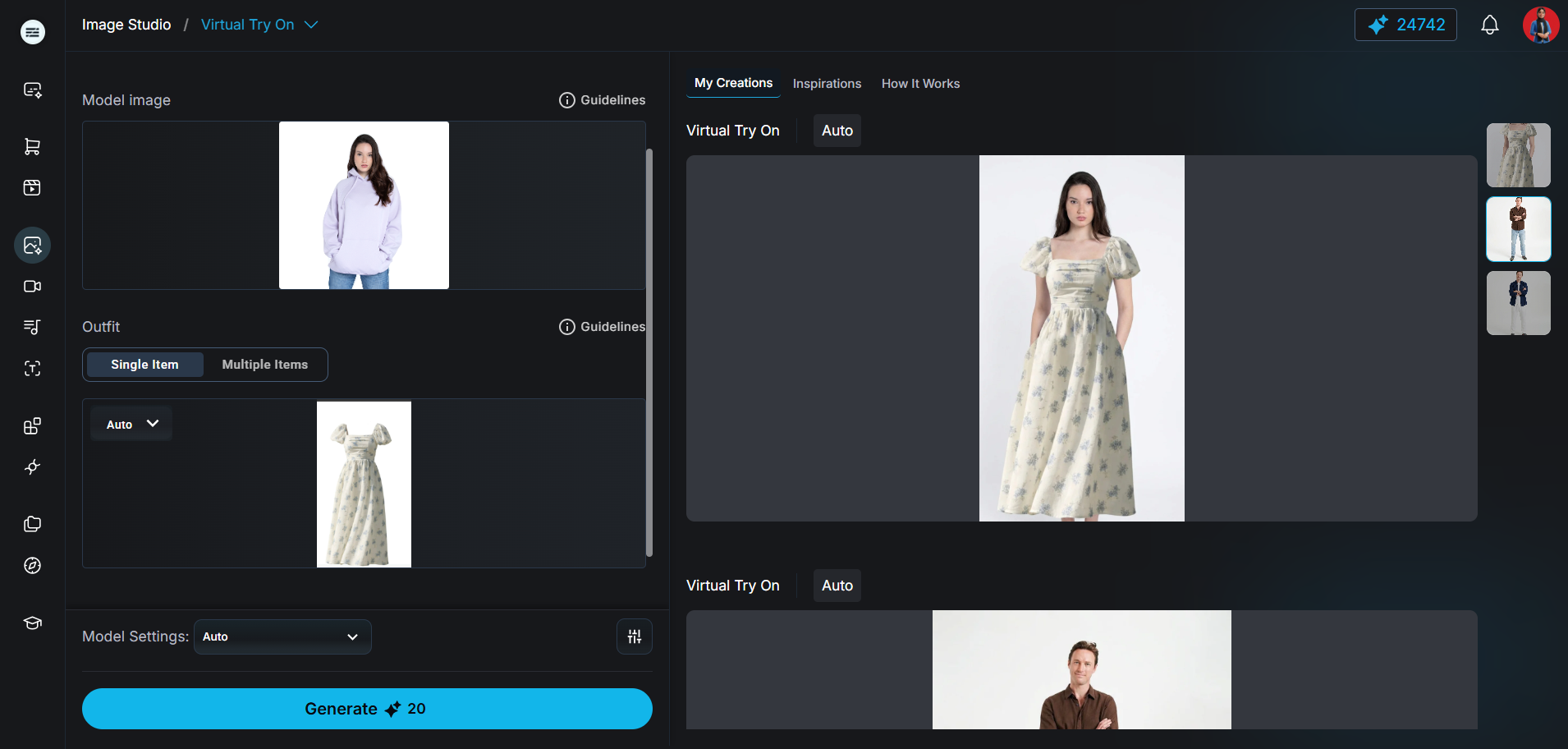
My Creations result from the Single Item run — same model pose, outfit transferred from the flat-lay reference.
What it does: Stops weak references from multiplying into a folder of confident-looking mistakes.
- Start simple — one model, Single Item outfit, Auto settings.
- Generate once — open the still in My Creations.
- Compare side by side with the Outfit and Model source files.
- Score with the checklist below before a second attempt.
- Only then try Multiple Items, alternate models, or Suggested models.
- Adapt carefully for PDP, category tiles, social, email, or lookbook — crops can hide hem length or construction.
- Label clearly — distinguish generated visuals from customer photos where context could confuse viewers.
If every version changes a critical detail, return to source prep — do not “prompt harder.” There is nowhere to type that prompt in the app.
Stage 8 — Before / after evidence
Show the real inputs and the real output — not stock fashion photos.
What it does: Documents honest Image Studio runs so readers can see inputs and outputs — not stock fashion photos.
Run A — Single Item
The Stage 1–7 screenshots show one complete Single Item pass: Model image + outfit flat-lay → Generate → My Creations result.
Run B — Multiple Items (Top + Bottom)
The three frames below are the second generation:
- Outfit Top — brown linen button-up shirt
- Outfit Bottom — light-wash jeans
- Full workspace — Model image + Multiple Items uploads + My Creations result (brown shirt + jeans on the same model)
Compare garment identity (colorway, collar, rolled sleeves, denim wash) against the sources before you would publish.
Frame 06A — Outfit Top (Multiple Items)
Exact Top garment uploaded for the second generation.
Brown linen button-up used as the Top reference in Outfit → Multiple Items.
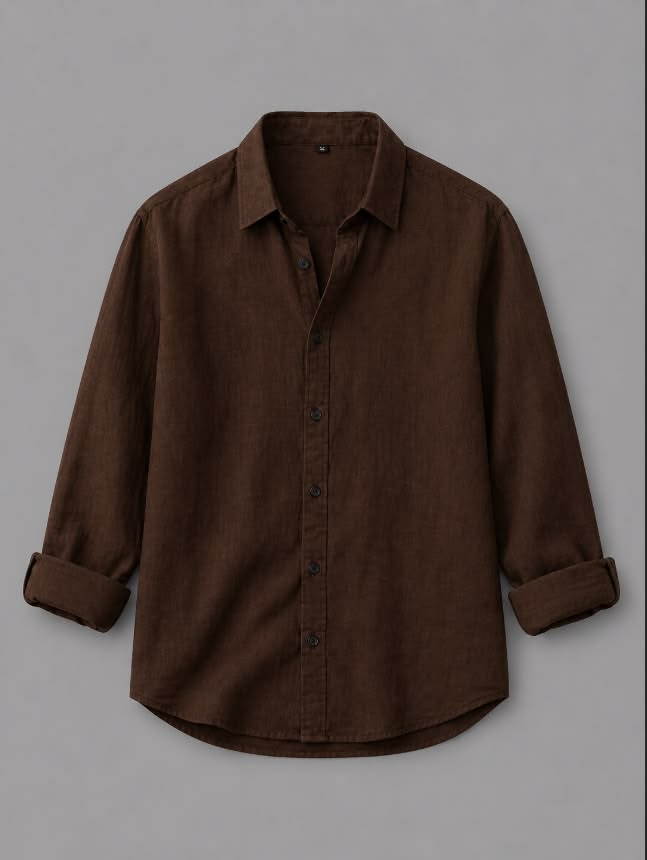
Outfit Top — brown linen shirt reference used in Virtual Try-On Multiple Items
Frame 06B — Outfit Bottom (Multiple Items)
Exact Bottom garment uploaded for the second generation.
Light-wash jeans used as the Bottom reference in Outfit → Multiple Items.
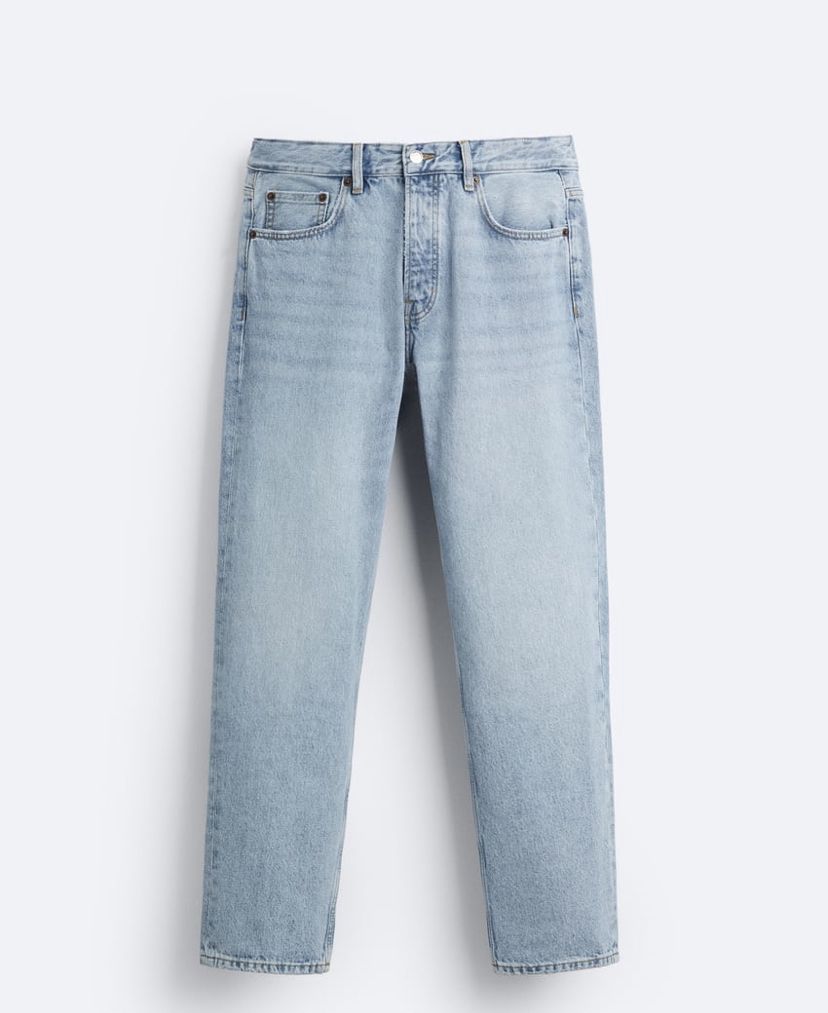
Outfit Bottom — light-wash jeans reference used in Virtual Try-On Multiple Items
Frame 06C — Inputs + generated result (Multiple Items)
Same Model image, Top + Bottom uploads, and My Creations output in one screen.
Full Virtual Try-On workspace after Generate: left panel shows Model + Multiple Items (Top/Bottom); right panel shows the try-on still in My Creations.
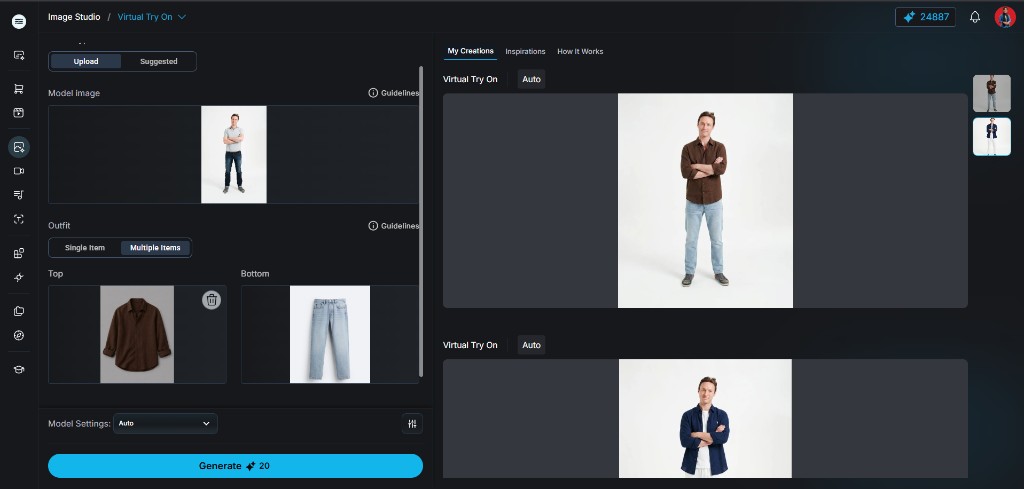
Multiple Items run — Model + brown shirt + jeans inputs, generated result in My Creations
Stage 9 — Review with fashion-specific attention
A polished image can still be commercially inaccurate.
What it does: Turns taste into a written record — objective checks first, subjective scores second.
Compare the My Creations output with every outfit reference. Trace neckline, shoulder, armhole, side seam, hem, and closure. Count buttons and pockets. Check pattern scale and direction. Inspect how hair, hands, and layers overlap.
Then review the person independently: face changes, body reshaping, altered skin tone, asymmetry, anatomy artifacts.
Finally, review the claim created by context. If the scene implies waterproofing, support, or other performance the product data does not establish, reject or re-shoot with a neutral setting.
| Review area | Check | Reject when |
|---|---|---|
| Garment identity | SKU, colorway, silhouette, print, logo, trim | The output resembles a different item |
| Construction | Neckline, sleeves, hem, closure, seams, pockets | Details move, vanish, or are invented |
| Fabric behavior | Drape, folds, stretch, opacity, shadows | Material behavior is implausible or misleading |
| Person integrity | Face, body, skin tone, hair, pose | Identity or body characteristics change unintentionally |
| Image integrity | Hands, edges, overlaps, background, lighting | Artifacts remain visible at delivery size |
| Commerce context | Labeling, size information, accessibility, permissions | The image overstates fit or lacks required consent |
Scene — Evaluation scorecard
What it does: Makes pass/fail reviewable across teammates — fill one scorecard per My Creations output. Keep failures.
VIRTUAL TRY-ON EVALUATION SCORECARD

SKU / colorway:
Date / Reviewer:
Path used: Image Studio Virtual Try-On / Agent
Model Settings:
Outfit mode: Single Item / Multiple Items

OBJECTIVE (pass / fail / notes)
[ ] Correct garment identity (silhouette, colorway, print, logo, trim)
[ ] Construction details accurate (neckline, sleeves, hem, closure, seams, pockets)
[ ] Fabric drape and occlusion look plausible for the pose
[ ] Person identity and body characteristics preserved
[ ] No invented accessories, text, or performance claims in scene
[ ] Usable hands, edges, and lighting at delivery size
[ ] Consent / rights recorded for model and outfit refs

SUBJECTIVE (1–5 + notes)
Catalog readiness:
Campaign styling fit:
Editability for next revision:

PROCESS NOTES
Attempts for this SKU:
Credits observed (Generate cost):
Time to usable output:
Failed outputs preserved? (Y/N)

CONCLUSION
Ship / revise / reject:
Evidence gaps:
Audit this virtual try-on output against the supplied outfit and model reference images. Return a checklist for garment identity, construction details, pattern and logo placement, fabric behavior, occlusion, person identity, body integrity, anatomy, lighting, and background. Describe only visible differences; do not guess. Classify each difference as acceptable variation, needs human review, or reject. Finish with questions that require product, legal, or merchandising confirmation.
Stage 10 — 10-minute benchmark plan
Fair QA needs the same Model + Outfit pair and transparent conditions.
What it does: Compresses a controlled test into five moves you can finish before lunch.
- Lock the input package — same Model file + Outfit file + Model Settings.
- Run 3 equal Generate attempts — do not change refs between attempts.
- Fill the scorecard — one card per My Creations output.
- Blind review — a second reviewer scores without seeing attempt order.
- Keep failures — a rejected image often teaches more than the best render.
Catalog rollouts need care. Compare failure rates across skin tones, body types, modest fashion, prints, and structured outerwear before you scale.
Use the Multiple Items workspace shot in Stage 8 (Frame 06C) as a reminder to keep each My Creations variant for scorecard comparison.
Stage 11 — Publish with transparency
The generated image should complement — not replace — decision-making evidence.
What it does: Names the ceilings so nobody ships a false promise beside a beautiful still.
| Limit | What to do |
|---|---|
| Fit is not proven | Keep measurements, size charts, and fit notes next to the image |
| Synthetic / altered imagery | Disclose where advertising rules, marketplace policy, or brand standards require it |
| Accessibility | Write alt text that describes the garment and meaningful styling — no keyword stuffing |
| Permissions | Maintain consent records, source licenses, generation notes, approvals, and a takedown path |
| Uneven quality | Test representative inputs across the catalog before scaling |
Virtual try-on is most useful when strong Model and Outfit references, fashion-aware review, transparent presentation, and conventional product information work together.
Virtual try-on expands visualization. Size charts, measurements, and honest labeling still close the purchase decision.
Shot list — live screenshots used in this post
All frames below are real Virtual Try-On captures hosted on Expertex blog media.
What it does: Documents real Image Studio screenshots used in this post. The cover uses an editorial fashion image rather than an app screenshot.
| Shot | What it shows | Used in |
|---|---|---|
| HERO | Editorial fashion cover (not an app screenshot) | Cover / OG / hero |
| 01 | Single Item workspace — Model + flat-lay outfit + My Creations | Stage 1 |
| 05 | My Creations result from Single Item run | Stage 7 |
| 06A | Outfit Top — brown linen shirt | Stage 8 |
| 06B | Outfit Bottom — light-wash jeans | Stage 8 |
| 06C | Multiple Items workspace — Top + Bottom + generated result | Stage 8 |
Capture tip for your own catalog: lock the same Model image across Single Item and Multiple Items tests, then score garment identity before publish.