Before you start
This is a stage-by-stage Create Video playbook.
What you'll get: Copy-paste briefs, Try in VideoSuite buttons, and a pre-publish scorecard.
Use Create Video for:
- Text-to-video clips
- Image-to-video with references
- First/last frames for transitions
- Multi-shot stories (1–6 shots)
Use something else for:
- Multi-scene reels → Reel Studio
- Template UGC ads → UGC Ads
- Chat-first workflow → Expertex Agent
Before you generate: Lock your audience, channel, aspect ratio, and duration. Confirm rights for every upload. Credits are reserved before generation and confirmed after usable output.
Stage 1 — Meet Create Video
One VideoSuite workspace for text, image, references, frames, and multi-shot.
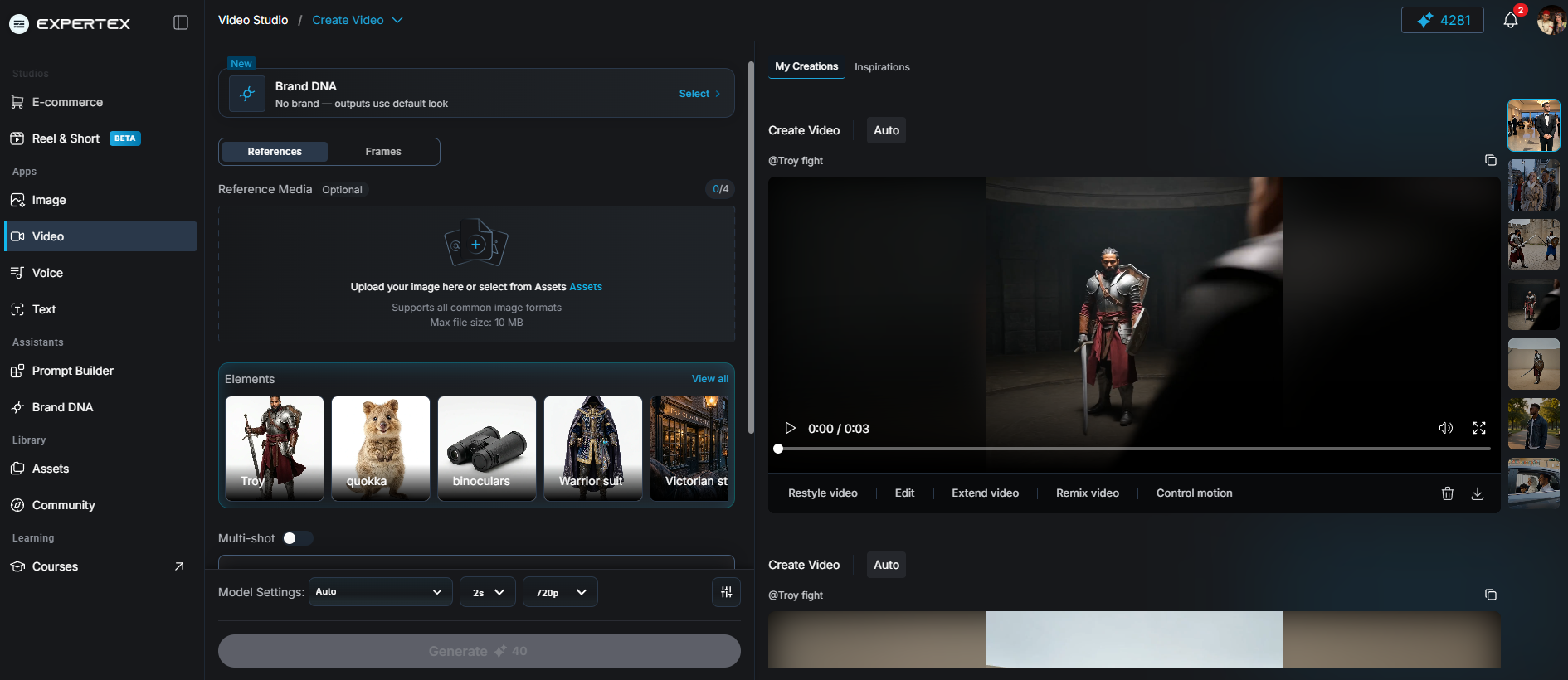
Create Video workspace — Brand DNA, references, model settings, Generate, and My Creations
What it does: Puts everyday AI video generation in one place at /video/create-video.
| Path | You start with | Best when you are… |
|---|---|---|
| Text-to-video | Prompt + model + ratio + duration | Exploring a new scene or camera move |
| Image / references | Still(s) + prompt (+ frames if supported) | Protecting product or character composition |
| Multi-shot | 1–6 shot prompts + per-shot duration | Building several beats that must feel like one story |
Optional: attach Brand DNA where Create Video exposes it — aesthetic guidance, not a hard logo/face/packshot lock.
Model choice controls what appears next: reference slots, frame support, and duration limits follow the selected model.
| Job | Create Video | Reel Studio | UGC Ads | Agent |
|---|---|---|---|---|
| Primary job | Directed clip generation | Multi-scene 9:16 reel | Template spoken ad | Chat → approve → generate |
| Inputs | Text, image, frames, refs, multi-shot | Idea, scenes, characters, voice/music | Template + product + avatar + script | Plain-language brief |
| Best length | Short model-limited clips | 30–120s multi-scene | Short template clip | Whatever the routed suite allows |
| Deep link | /video/create-video | /reel-studio | /video/ugc-ads | /agent |
A useful brief beats a long prompt. One principal action, one camera idea, one emotional beat per shot.
Stage 2 — Lock the video brief
Audience, channel, ratio, duration, and what must stay recognizable — before any prompt.
What it does: Stops vague “make a premium film” briefs from burning credits.
Copy the worksheet below and fill it first. If a product fact is missing, flag it — do not invent packaging, pricing, or claims inside the motion prompt.
CREATE VIDEO BRIEF — fill before generating

Audience (one sentence):
Channel (TikTok / Reels / Shorts / web / ads):
Aspect ratio (e.g. 9:16 or 16:9):
Target duration (seconds):
Path: Text-to-video / Image-to-video / Multi-shot (1–6)

Subject that must stay recognizable:
Approved product facts only:
Prohibited claims / invented labels: none allowed

One-sentence story goal (what the viewer understands at the end):
Principal action (subject):
Camera idea (one move only):
Ending frame (edit-friendly hold? Y/N):

Rights confirmed for every upload / likeness / logo? (Y/N)
Brand DNA attached? (Y/N / N/A) — guidance only, not a lock
Disclosure required where published? (Y/N — where:)
Stage 3 — Text-to-video
Describe what can be seen — then generate.
Create Video — prompt, model, duration, and Generate (text path)
What it does: Turns a focused text prompt into a first clip when you do not have a locked still yet.
Name subject action separately from camera action. Avoid contradictions (“locked camera” + “fast orbit”). Leave negative space for editor-added captions.
| Setting | Practical tip |
|---|---|
| Model | Pick for look + duration support |
| Ratio | Match destination (9:16 social vs 16:9 web) |
| Duration | Start short; extend only if every second earns it |
| Brand DNA | Optional mood/palette guidance — still review frames |
Next: copy the prompt → Try in VideoSuite → paste → Generate → scrub every frame.
Vertical product film, 9:16. A matte cobalt travel bottle stands centered on a pale stone pedestal in a quiet studio. Soft morning light enters from camera left and creates a clean, natural shadow. The camera begins in a medium shot, then makes one slow, stable push toward the bottle as a fine mist passes through the background. Keep the bottle shape, cap, and cobalt color consistent. No people, no added labels, no floating objects, no abrupt camera movement. End on a steady close product frame with clear negative space above the bottle for an editor-added headline.
Stage 4 — Image, frames, and references
Text creates freedom; images create constraints.
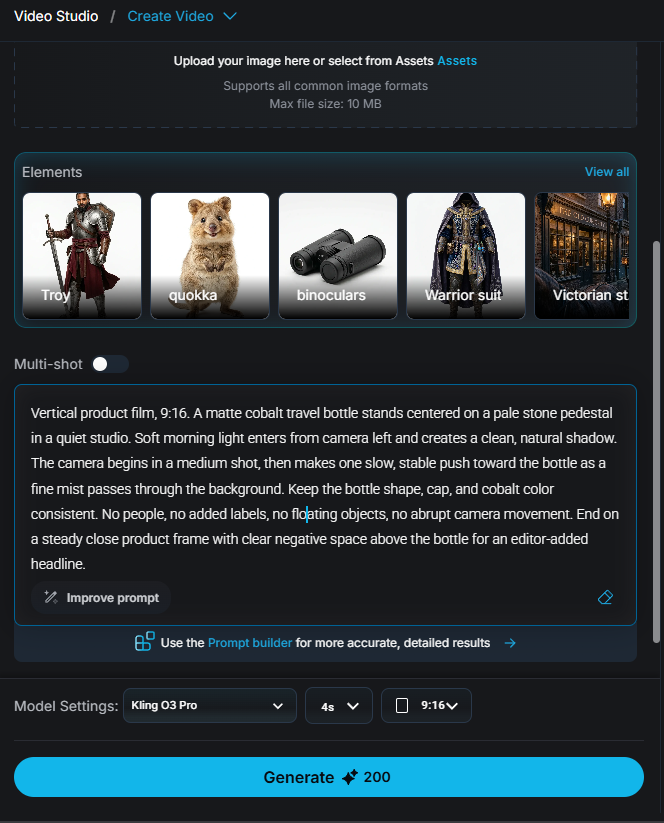
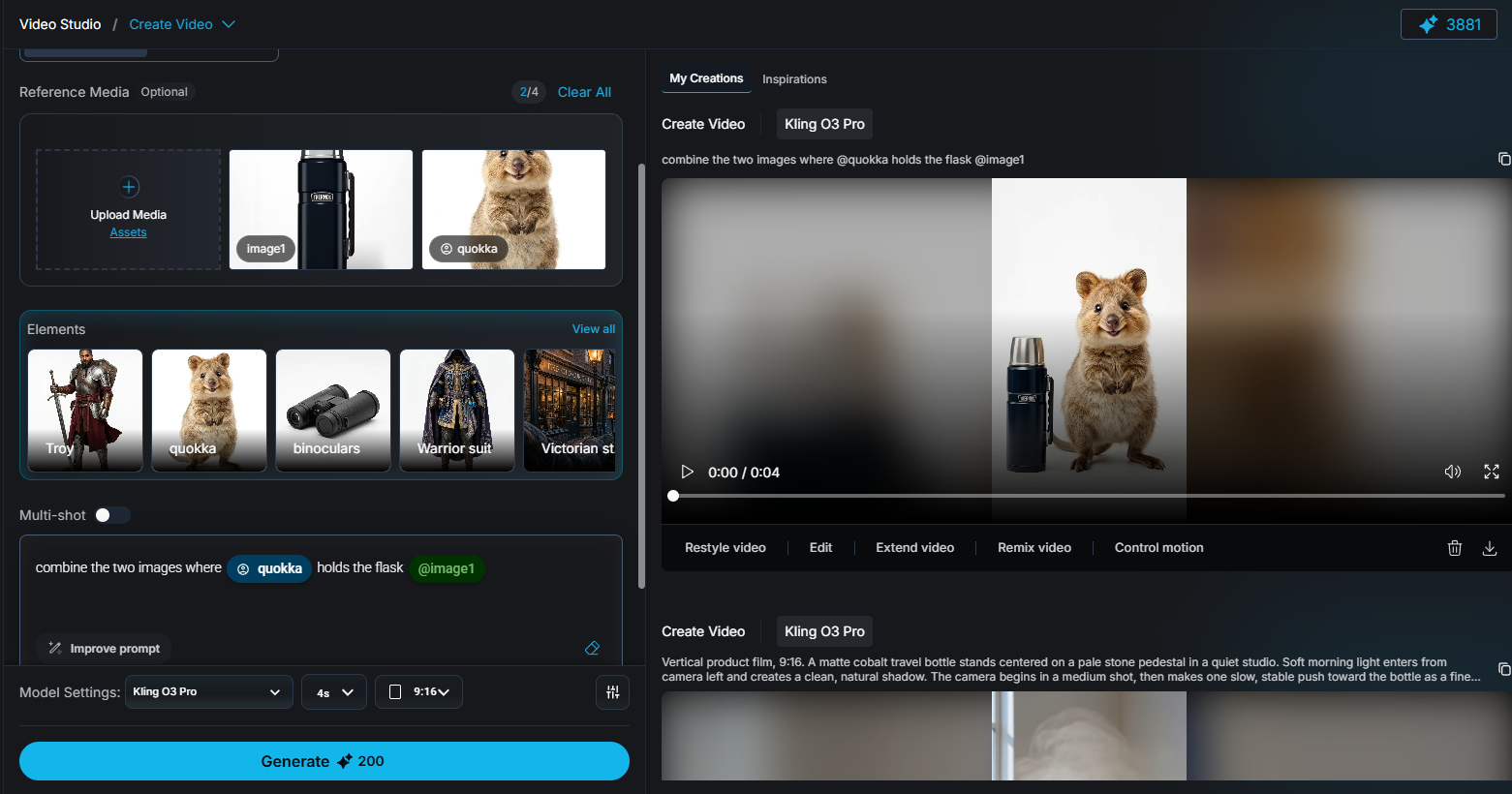
Create Video with references — uploaded stills tagged in the prompt, plus result in My Creations
What it does: Anchors composition when the opening frame (or transition endpoints) already matter.
Image / reference media
Upload a clean packshot, character frame, or storyboard panel. Tag refs in the prompt (e.g. @image1, @quokka) so each still has a named job.
An image is not a guarantee of perfect identity preservation — inspect labels, hands, faces, reflections, and small geometry every time.
First + last frames
Use for planned transitions. Keep perspective, scale, and lighting compatible unless the transformation is the story. Review the path between endpoints.
References (model-dependent)
Give each reference a role: subject / palette / camera language. Do not upload material you do not own; never use a real person's likeness without consent.
IMAGE-TO-VIDEO — use with an authorized product still

Keep the exact bottle shape, cap, cobalt color, and label placement from the uploaded image. Quiet studio, pale stone pedestal, soft morning light from camera left. One slow, stable push-in from medium to close. No new logos, no invented text on packaging, no people, no abrupt camera moves. End on a steady hold with negative space above the product for a headline.

Optional frames (if model supports):
- First frame: medium product on pedestal
- Last frame: close product hold, same lighting direction

Optional references (name the role of each):
- Subject ref: [packshot]
- Palette ref: [mood still]
- Do not mix unexplained refs
| Input | Best for | Main review risk |
|---|---|---|
| Text-to-video | New scenes and motion exploration | Uncontrolled details / identity drift |
| Image-to-video | Anchoring product or character composition | Small source details warp |
| References | Subject + style + camera language (if supported) | Ambiguous conflicting refs |
| First / last frames | Planned transitions | Unnatural in-between motion |
| Multi-shot (1–6) | Several beats, one short story | Continuity breaks; duration over model max |
Stage 5 — Multi-shot storytelling (1–6)
Continuity comes from repeated decisions — not one lucky clip.
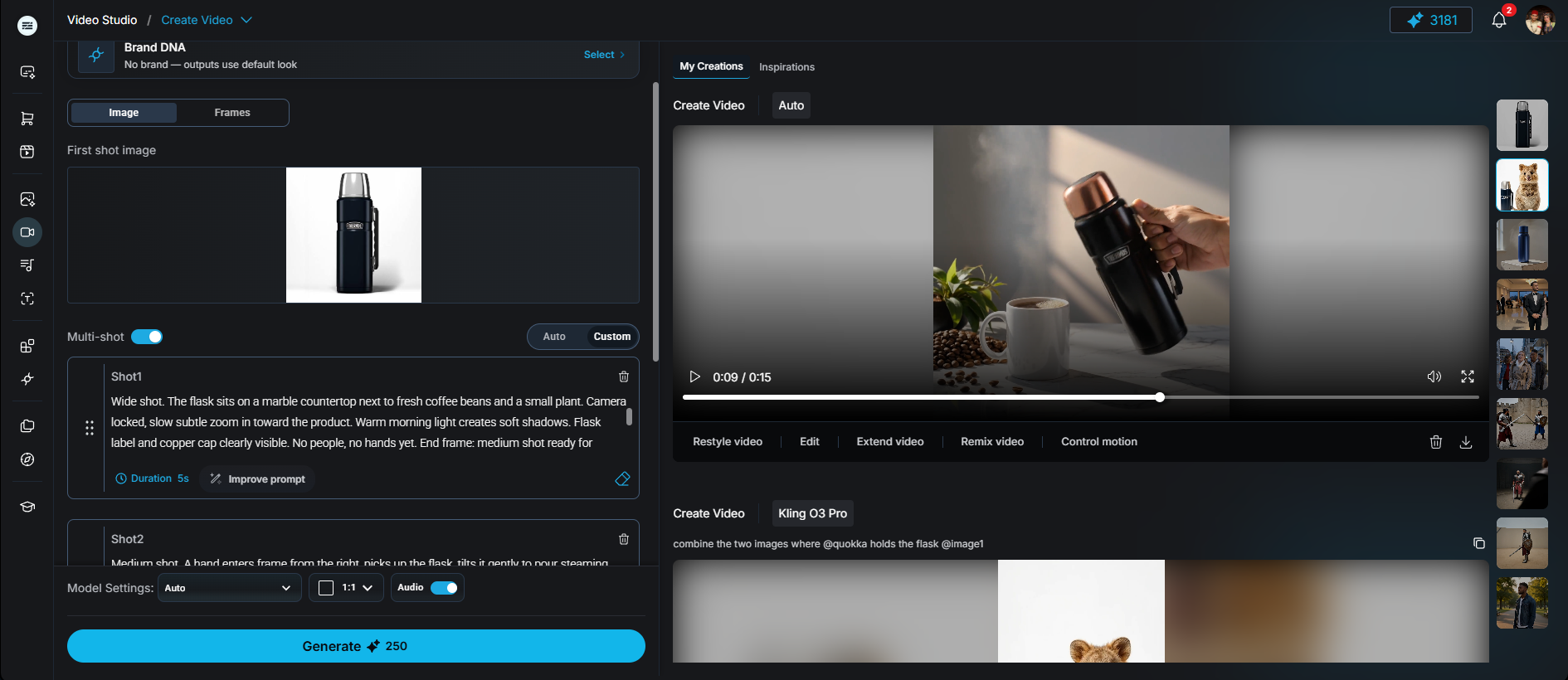
Multi-shot UI — write each shot's prompt and duration independently, then Generate all at once
What it does: Lets you direct several shots with per-shot prompts and durations inside Create Video multi-shot mode.
| Constraint | Expertex today |
|---|---|
| Shot count | 1–6 |
| Per-shot prompt | Up to 512 characters |
| Total duration | Sum must fit the selected model’s min/max |
| Continuity | Your repeated language — not a guaranteed lock |
Reliable rhythm: establish → introduce subject → key action → resolve. Leave edit handles at the start and end of each shot.
MULTI-SHOT FLASK AD — 9:16 vertical, 15 seconds across 3 shots
Premium stainless steel insulated flask in matte black finish with copper accent cap. Modern kitchen countertop, soft natural window light from the right side, clean white background. Lifestyle product ad feel.

Shot 1 — ESTABLISH (5s):
Wide shot. The flask sits on a marble countertop next to fresh coffee beans and a small plant. Camera locked, slow subtle zoom in toward the product. Warm morning light creates soft shadows. Flask label and copper cap clearly visible. No people, no hands yet. End frame: medium shot ready for interaction.

Shot 2 — PRODUCT IN USE (6s):
Medium shot. A hand enters frame from the right, picks up the flask, tilts it gently to pour steaming coffee into a white ceramic mug beside it. Camera follows the pouring motion with a slow arc move from right to left. Keep flask branding visible throughout. Steam rises naturally from the mug. Hand exits frame. End on the filled mug and flask standing upright.

Shot 3 — RESOLVE + CTA (4s):
Close-up shot. Flask centered in frame with the filled mug beside it. Camera locked. Soft focus on background, sharp focus on product details — texture of matte black finish, condensation drop on the side, copper cap gleaming. Leave clear negative space in the top third for text overlay: "Keeps Hot 12h | Cold 24h". End on a steady hold, edit-ready.

CONTINUITY: Same flask (matte black + copper cap), same marble countertop and white mug, lighting direction consistent (window right, soft natural). No wardrobe changes, no new products introduced. Steam and condensation subtle, not exaggerated.

PROHIBITED: No text on flask that wasn't in Shot 1. No people's faces. No abrupt camera shakes or cuts. No floating objects or physics breaks. No invented brand claims in the visual.
CONTINUITY SHEET — keep beside every multi-shot job

Subject (exact phrases to reuse):
Wardrobe / product state:
Environment + time of day:
Palette + lighting direction:
Camera vocabulary (allowed moves only):
What may change between shots:
What must NEVER change:

Shot list:
1) Purpose / action / duration / end frame
2) Purpose / action / duration / end frame
3) Purpose / action / duration / end frame

After generate: note which shot failed continuity and change ONE variable on retry.
Stage 6 — Review before you publish
Treat generation as footage — not a finished campaign.
What it does: Catches plausible-looking errors before they ship.
Watch full-speed once, then scrub in My Creations. Reject persuasive clips that misrepresent the product. Brand DNA (if attached) was guidance only — still compare packaging to an approved reference.
Copy the scorecard below, fill PASS/FAIL, and keep it with the brief + prompts + selected outputs.
CREATE VIDEO — PRE-PUBLISH SCORECARD

Job name / version:
Path used: Text / Image / Frames / Refs / Multi-shot
Model + ratio + duration:
Reviewer / date:

PASS / FAIL / NOTES
[ ] Story clear at full speed
[ ] No warping, sudden objects, or background jumps on scrub
[ ] Faces / hands / labels / logos / product geometry inspected
[ ] Camera move does not fight subject action
[ ] Final frame is a clean edit point
[ ] Ratio + duration match destination
[ ] No invented claims, pricing, or packaging text
[ ] Rights cleared for uploads, likenesses, music/voice if added later
[ ] Synthetic-media disclosure added where required
[ ] Brand DNA treated as guidance — packshot still verified

RETRY RULE: change only ONE of prompt / camera / source image / shot duration per attempt.
Pro tips (keep these next to Generate)
Small habits that save credits and keep continuity.
- Change one variable when iterating — if composition is right but motion is wrong, keep the visual description and revise only action or camera language.
- Name each reference's job — subject, palette, and camera language are different roles. Unlabeled multi-reference uploads create ambiguity.
- Respect multi-shot duration limits — total shot duration must sit inside the model's allowed range. Fix durations before retrying the same story.
- Do not overclaim Brand DNA — optional Brand DNA on Create Video guides mood and palette — not logo lock, face lock, or packshot fidelity.
- Use Try in VideoSuite from this page — copy a prompt block, open Create Video, paste, generate, then run the scorecard.
FAQ — creating AI video with Expertex
Short answers for common search questions.
How do I create AI video with text? Open Create Video, lock model/ratio/duration, paste a prompt with one subject action and one camera move, generate, then scrub.
How do I turn an image into AI video? Upload an authorized still (and optional refs), tag them in the prompt, and inspect labels every time.
What is multi-shot AI video in Expertex? A Create Video mode for 1–6 shots with per-shot prompts/durations. Total duration must fit the selected model.
Can I use first and last frames? Yes when the selected model supports frames — review the in-between motion, not only the endpoints.
Does Brand DNA lock my logo in video? No. On Create Video it is optional aesthetic guidance.
Create Video vs Reel Studio vs UGC Ads? Directed clips → Create Video. Multi-scene character reels → Reel Studio. Template spoken ads → UGC Ads.
Honest limits
What Create Video accelerates — and what stays human.
| Limit | Detail |
|---|---|
| Identity / product lock | Images and refs improve odds — not a guarantee |
| Multi-shot | 1–6 shots; total duration must fit the model |
| Brand DNA | Guidance on Create Video — not compliance or logo lock |
| Scope | Not Reel Studio, not UGC templates, not Agent orchestration |
| Credits | Reserve → confirm after usable output |
| Compliance | Claims, rights, disclosure stay human |
Related workflows
Create Video accelerates directed footage. Continuity, claims, and disclosure still belong to the human reviewer.